Skip to content

Mercedes-Benz S-class 2013 Key Fob & Car Keys

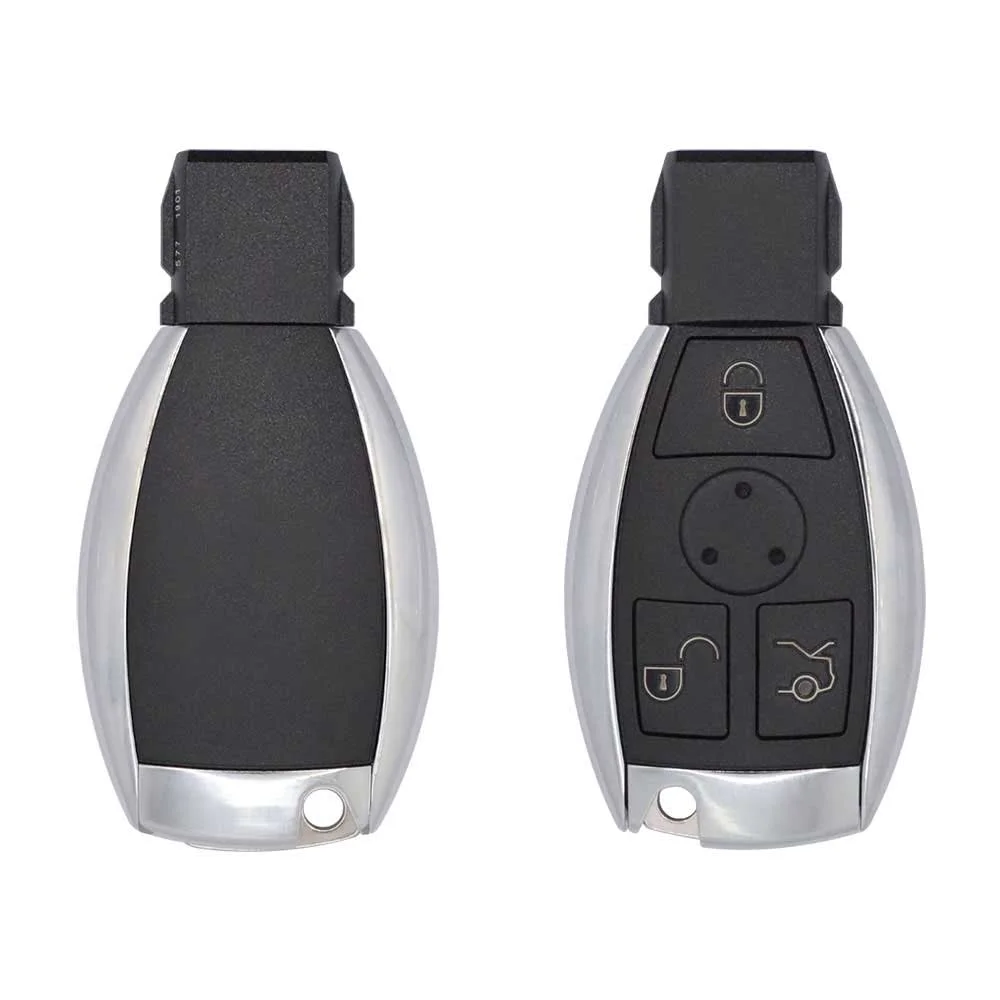
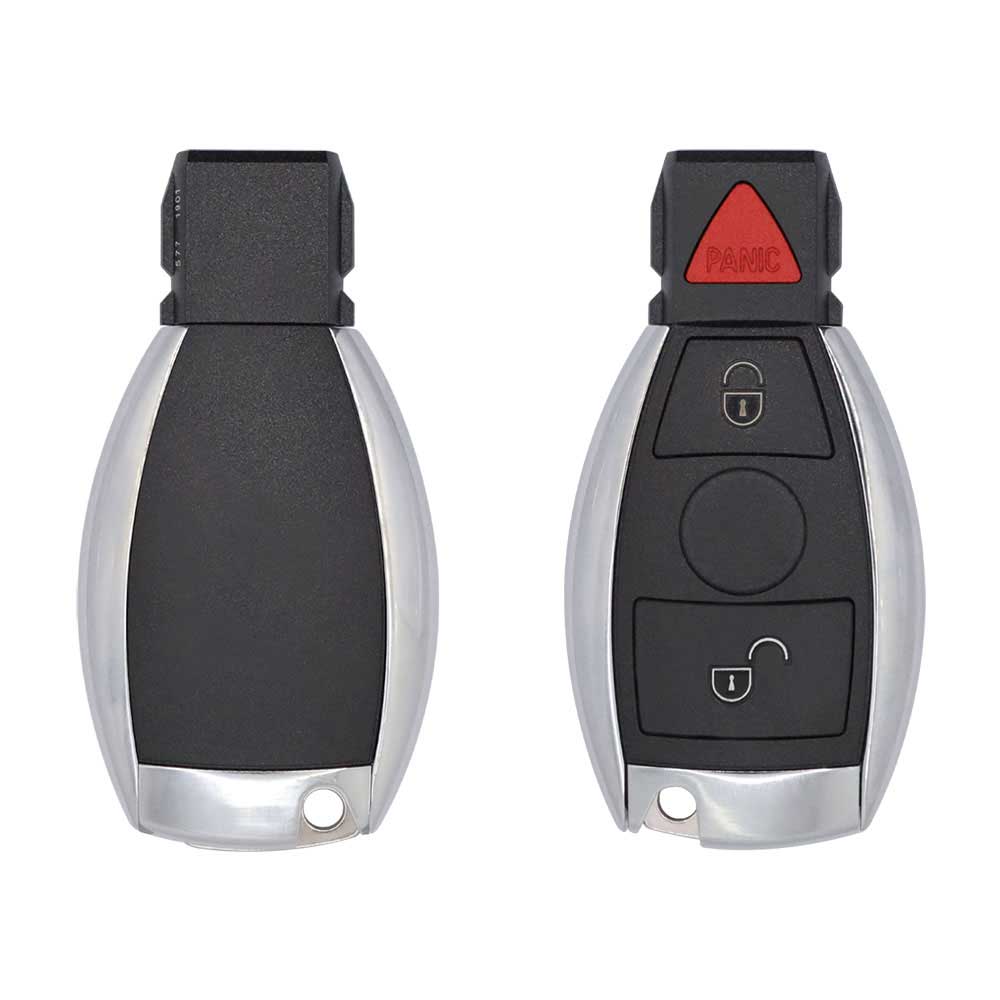
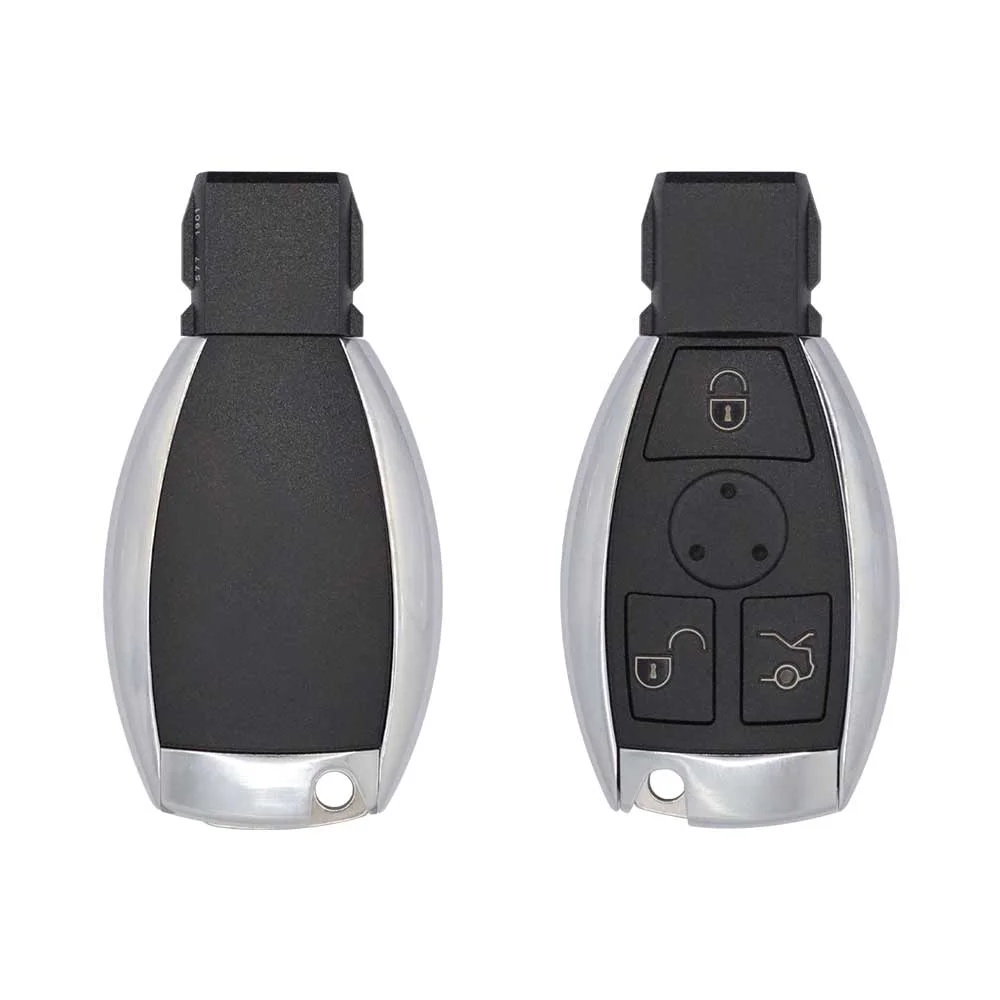
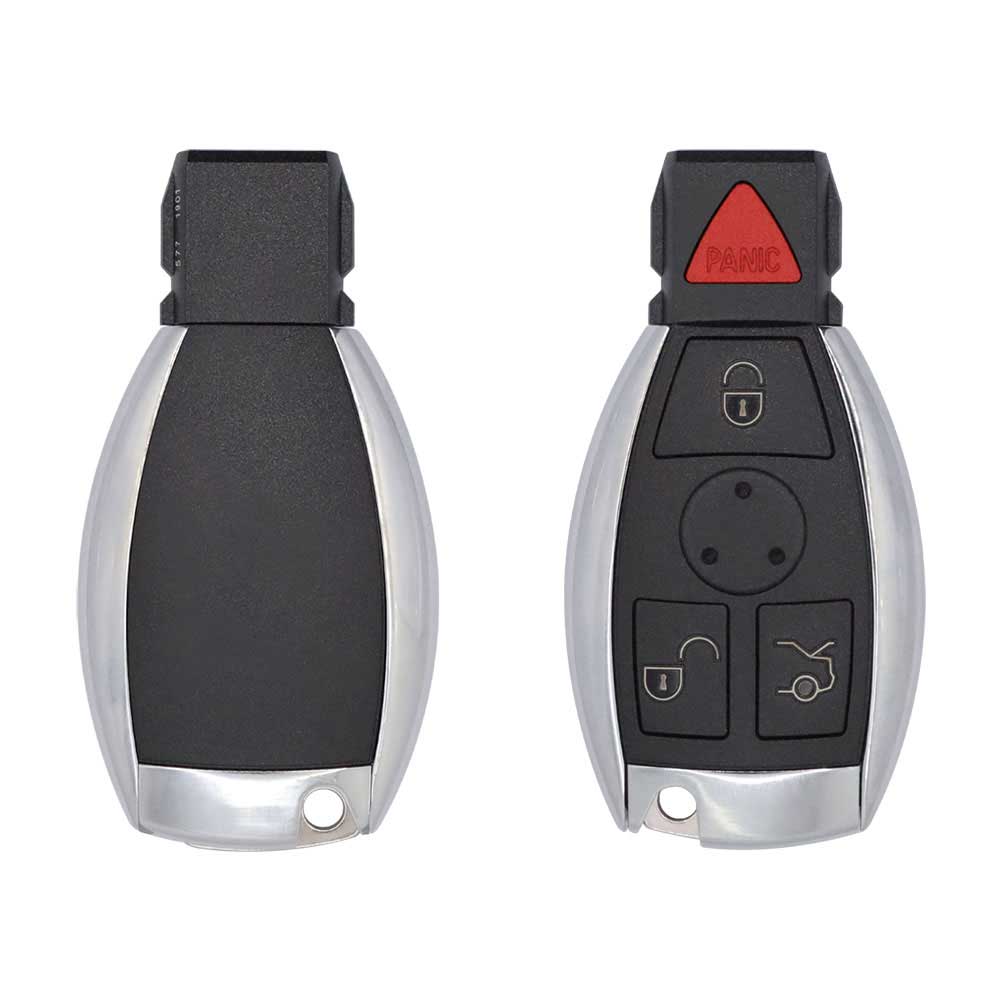
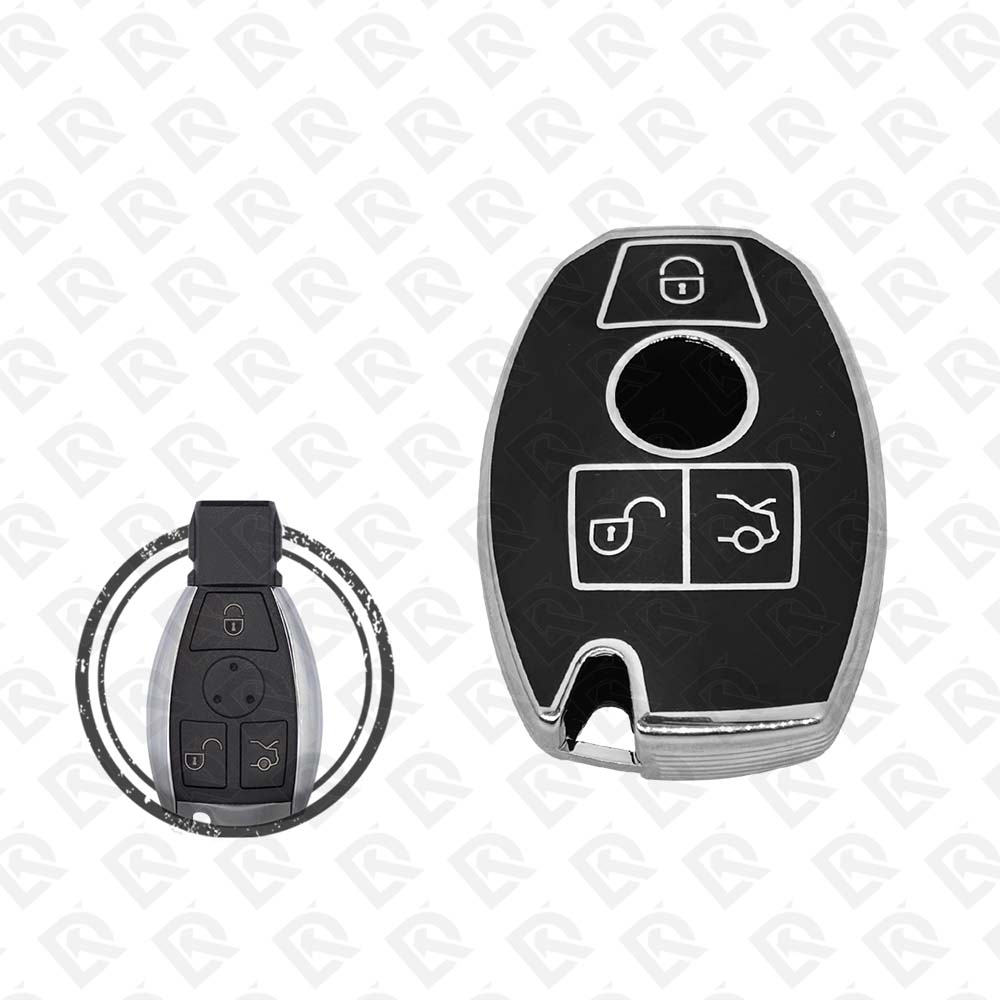
Keys that fit the 2012–2013 Mercedes-Benz S-class: smart keys and remote keys, 2 or 3 buttons, 315 MHz or 433 MHz. 15 compatible keys, remotes & shells (genuine and aftermarket) available for the 2013 Mercedes-Benz S-class.

Last updated: 18 November 2026

Key specifications for the Mercedes-Benz S-class 2012–2013

Key types
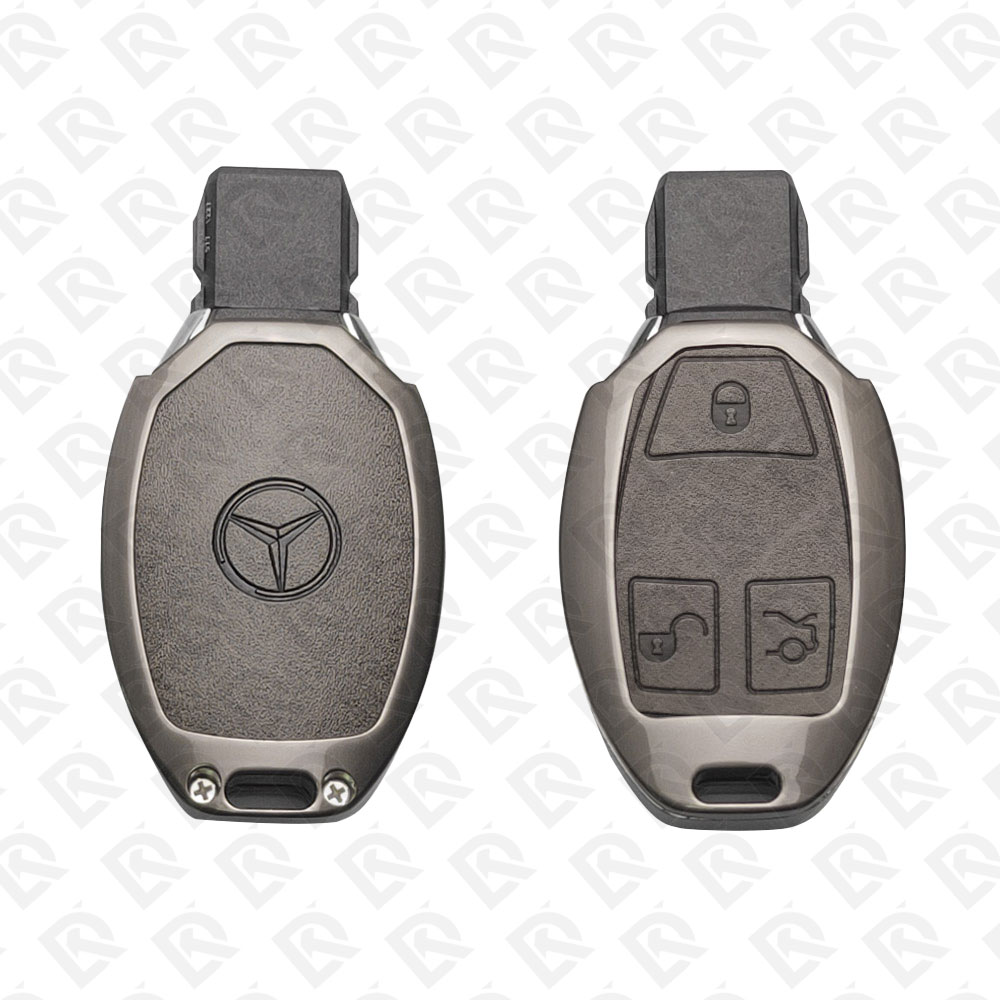
smart keys, remote keys, key shells, emergency blades and key blanks
Frequency
315 MHz and 433 MHz
Buttons
2- and 3-button
Blade profile
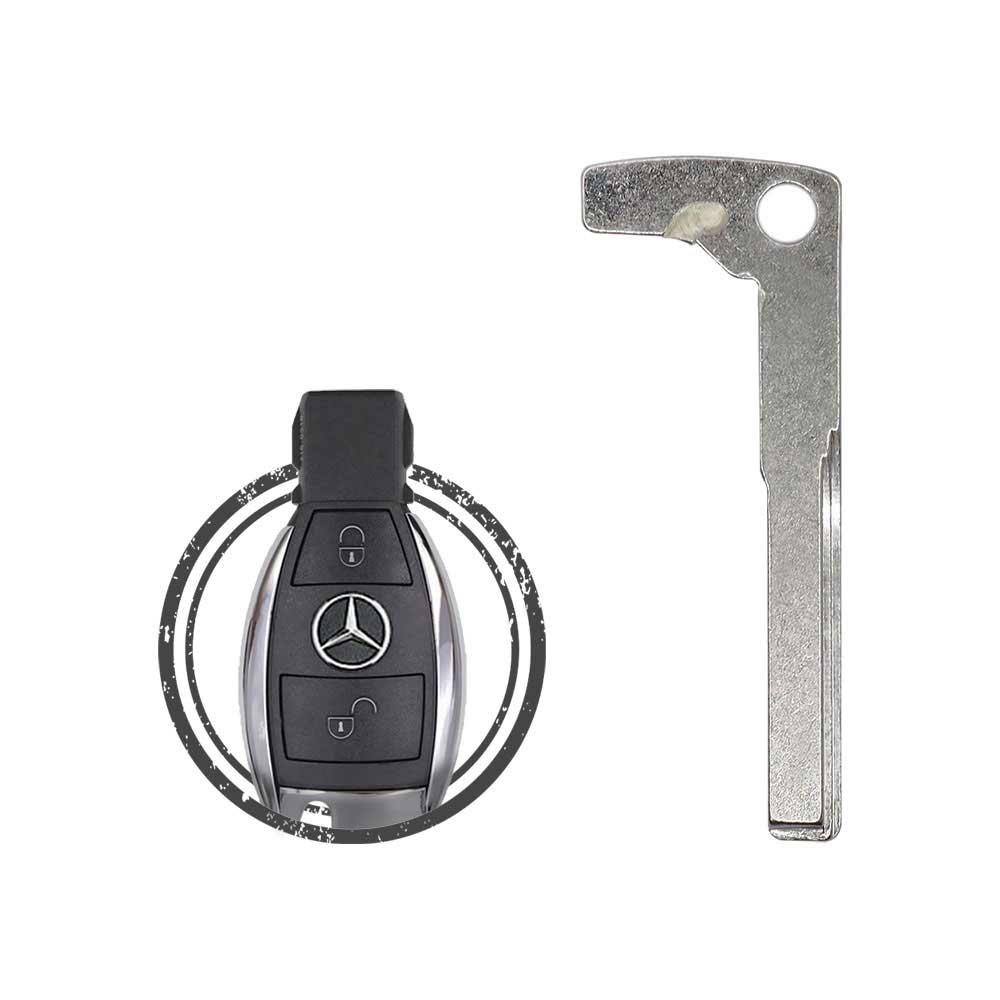
HU64
Battery
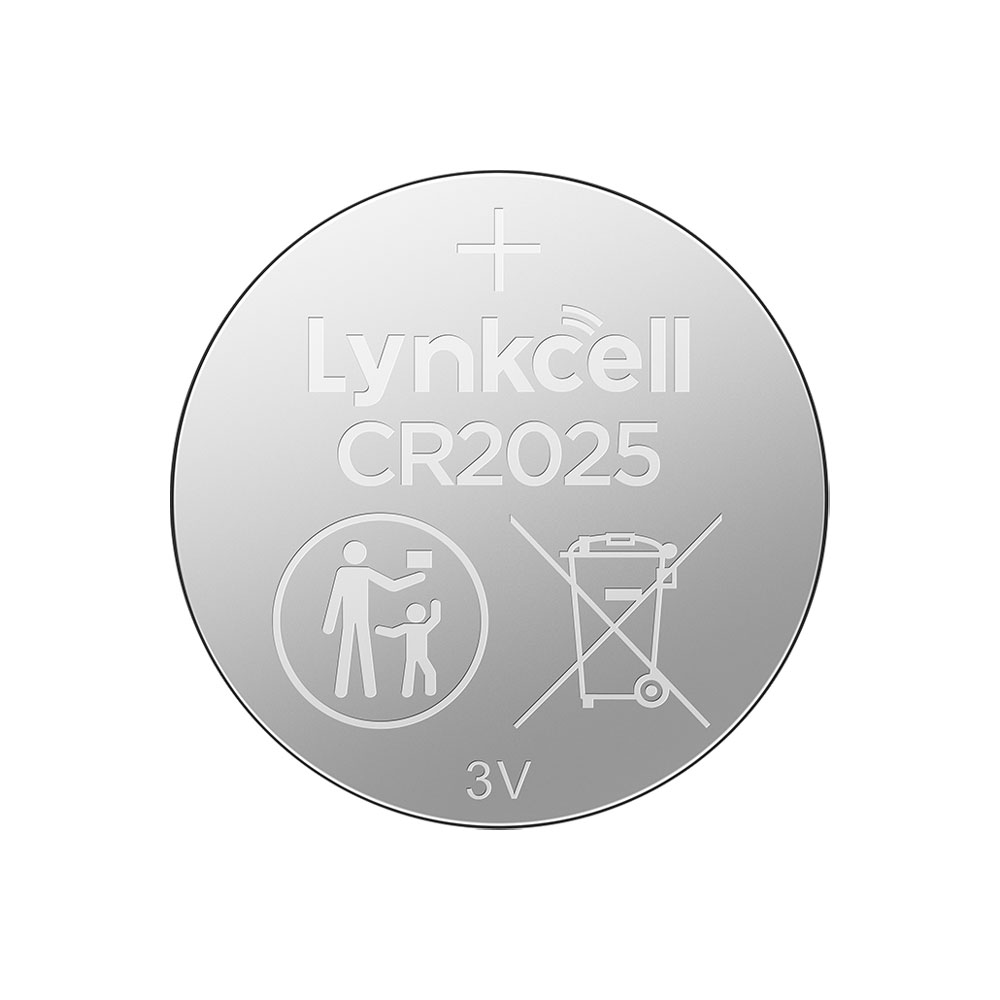
CR2025

To pick the right part, match the part number or FCC ID printed on your original remote, or listed in the Mercedes-Benz parts catalogue, with the specifications on each listing. The frequency depends on the market the car was sold in, so check 315 MHz and 433 MHz against your original before ordering.

A new smart key or remote has to be programmed to the car with a key programmer, and when every key is lost the programming is still done through the diagnostic port. We ship the key worldwide from the UAE by DHL and FedEx; any automotive locksmith or the dealer can cut and program it.
Programming the Mercedes-Benz S-class 2013 key

Smart key (push to start)

5 tools list this key. 3 of them list all keys lost.

All keys lost is listed by Autel IM508S, Autel IM608 II / IM608 Pro II and Xhorse VVDI MB Tool. Xhorse VVDI Key Tool Max and Xhorse VVDI Key Tool Plus list add key only.

Programming steps

Add key - Autel MaxiIM IM608 / IM508S + XP400 Pro

Needs: working key, blank BE / NEC infrared key matching the car, internet connection (online password calculation)

  1. Connect the tablet to the OBD port and the XP400 Pro by USB; open IMMO, Mercedes-Benz and let the tool identify the EIS (W221).
  2. Read the EIS data and save the file before anything else.
  3. Choose Add key, then hold the working key at the XP400 Pro so the tool detects its frequency.
  4. Run the password calculation with the working key: insert and remove it in the EIS when asked, then put it in the XP400 Pro infrared slot so the tool collects data. The server works out the key password (allow 10 to 30 minutes).
  5. Generate the key file for an unused key position.
  6. Put the blank key in the XP400 Pro infrared slot and write the key file.
  7. Insert the new key in the EIS: the red LED on the key lights and goes out when the EIS has learned it. If it stays lit, take the key out and put it back a few times.
  8. Test start and remote lock / unlock with the new key and the old keys.
Watch out: Power the car from a battery support unit; the data collection keeps the ignition on for a long time. Use a key version that matches the EIS (BE or NEC type); the tool shows the key type before writing.
Add key - Xhorse VVDI MB Tool

Needs: working key, blank BE / NEC infrared key, internet connection

  1. Connect VVDI MB to the OBD port (or to the EIS with the IR adapter on the bench for K-line EIS) and read the EIS data; save it.
  2. Put the working key in the VVDI MB infrared reader and identify it. A BE-version key gives its password directly by infrared, with no calculation.
  3. Otherwise open Password Calculation, working-key mode, select the chassis group and run Data Acquisition, inserting the working key in the EIS when told (do not switch the ignition on unless asked).
  4. Upload the data, wait for the server result, paste the key password into the EIS data and save the file again.
  5. Open Prepare Key File, load the EIS file with password and generate the file for a free key position.
  6. Put the blank key in the infrared reader, load the key file and write it.
  7. Insert the new key in the EIS so it learns the key, read the EIS again to confirm the position now shows as used, then test start and remote.
Watch out: Keep the battery voltage up during data acquisition. A position already used by a lost key can be disabled from EIS Tools once the new key works.
All keys lost - Autel MaxiIM IM608 / IM508S + XP400 Pro + G-BOX3

Needs: G-BOX3 adapter, blank BE / NEC infrared key, 12 V power supply, internet connection (online password calculation)

  1. Remove the EIS and connect it to the G-BOX3 with the DB15 cable; power the G-BOX3 from a 12 V adapter and connect it and the XP400 Pro to the tablet.
  2. Open IMMO, Mercedes-Benz, Expert mode, Password Calculation, All keys lost (fast), on bench, and select EIS W221; follow the connection diagram shown.
  3. Start the data collection and let the tool calculate the password online; save the EIS data with the password.
  4. Generate the key file for an unused position and choose the key type you will write.
  5. Put the blank key in the XP400 Pro infrared slot and write the key file.
  6. Refit the EIS, insert the new key: the red LED lights and goes out when it is learned. Switch on and start.
  7. Test the remote and every key the customer keeps.
Watch out: Battery support on the car (or a stable 12 V bench supply); a voltage drop during data collection means starting again. Write down which key positions are used before generating the new key.
All keys lost - Xhorse VVDI MB Tool

Needs: blank BE / NEC infrared key, internet connection, calculation tokens, EEPROM programmer for some older EIS

  1. Read the EIS data (OBD or on the bench with the infrared adapter) and save it.
  2. Run Password Calculation with the box for all keys lost ticked, select the W221 group and start Data Acquisition; allow about 1.5 hours.
  3. If the EIS is the older Motorola type the online calculation is not offered: remove the EIS, read its EEPROM with a programmer (for example VVDI Prog) and load that file instead.
  4. Upload the data and wait for the server result; paste the key password into the EIS data and save.
  5. Open Prepare Key File, load the EIS file with password and generate the file for a free key position.
  6. Write the file into the blank key through the infrared reader.
  7. Refit the EIS, insert the new key so it learns it, then test start and remote.
Watch out: Keep the voltage stable through data acquisition. Do not renew or replace the EIS unless the job needs it; a renewed EIS also needs the steering lock (ELV / ESL) adapted.

Key with a blade (regular or flip)

One tool lists this key.

  • Advanced Diagnostics Smart Pro
    • Add key
    • All keys lost
    online calculation
    Needs: AD ADC2000 cable

Key type not stated by the list

2 tools list this key. 2 of them list all keys lost.

  • Launch X-431 IMMO
    • Add key
    • All keys lost
    PIN read function
  • OBDSTAR Key Master G3
    • Add key
    • All keys lost
    reads the PIN by OBD

When the key changed

Smart key (push to start)

  • 2000 - 2005Chip: Infrared (FBS3)W220
  • 2006 - 2013This yearChip: Infrared (FBS3)W221
  • 2014 - 2020Chip: FBS4W222
  • 2021 - 2024Chip: FBS4W223 (MRA2); no separate EIS, aftermarket key tools limited so far

Check coverage first: support depends on the tool's software version and the exact model. A tool that is not shown here may still cover this car.

Frequently asked questions

Which keys fit the Mercedes-Benz S-class 2012–2013?

15 listings fit the Mercedes-Benz S-class 2012–2013: smart keys, remote keys, key shells, emergency blades and key blanks, in 2- and 3-button versions. Match the part number or FCC ID printed on your original key with the specifications on each listing.

What frequency does the Mercedes-Benz S-class 2012–2013 remote use?

Listings for the Mercedes-Benz S-class 2012–2013 come in 315 MHz and 433 MHz: the frequency depends on the market the car was sold in, so check it against your original remote before ordering.

Which blade profile does the Mercedes-Benz S-class 2012–2013 key use?

The blades listed for this car: HU64.

Which tools program a Mercedes-Benz S-class 2012–2013 key?

The tool makers' coverage lists name Autel IM508S, Autel IM608 II / IM608 Pro II, Xhorse VVDI MB Tool, Xhorse VVDI Key Tool Max, Xhorse VVDI Key Tool Plus and Advanced Diagnostics Smart Pro for this car; 4 of them list all keys lost. Check your tool's latest coverage list before the job.