Skip to content

Toyota Camry 2020–2021 Key Fob & Car Keys

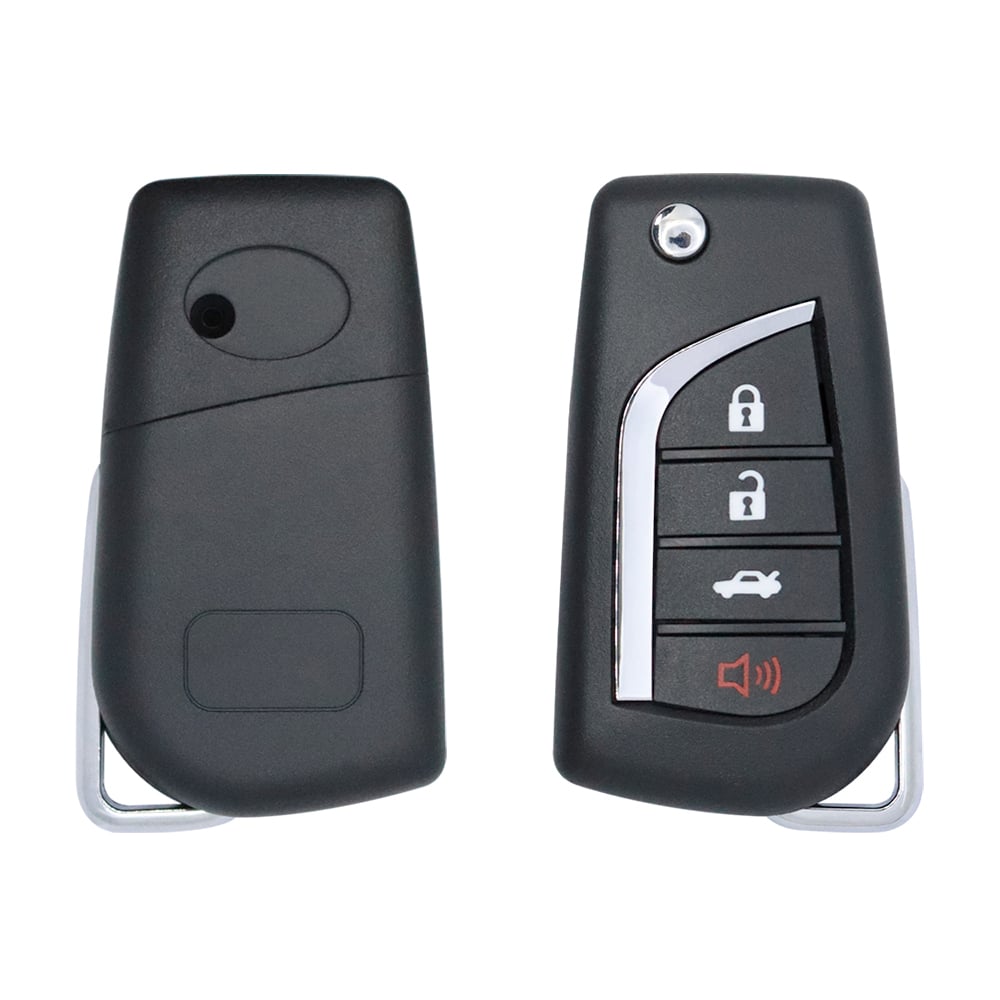
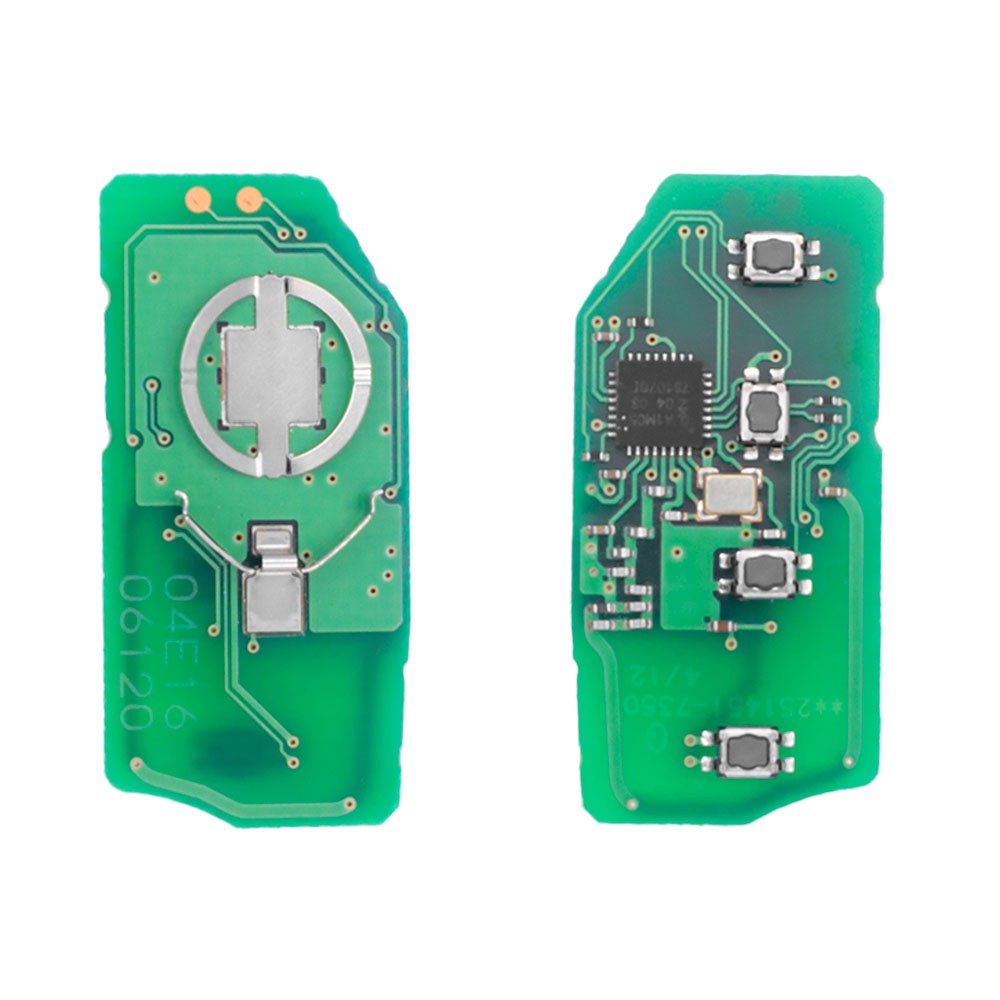
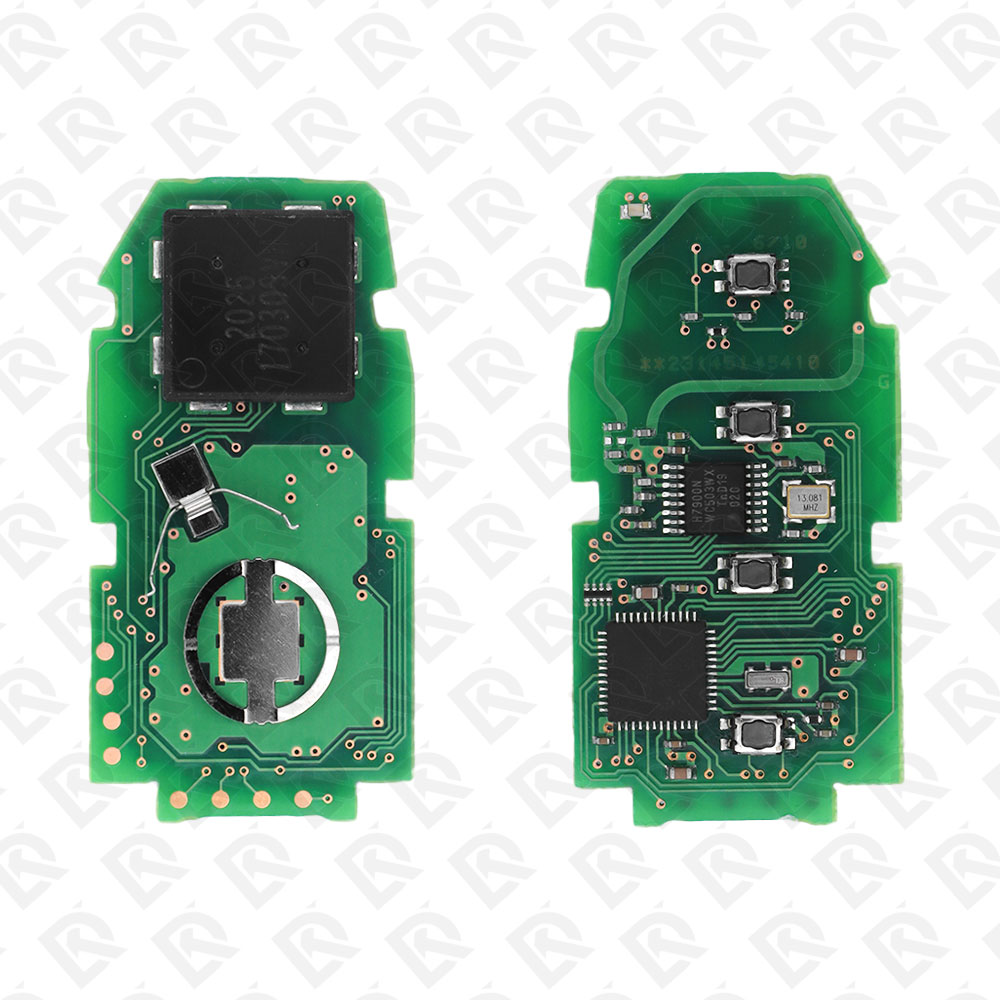
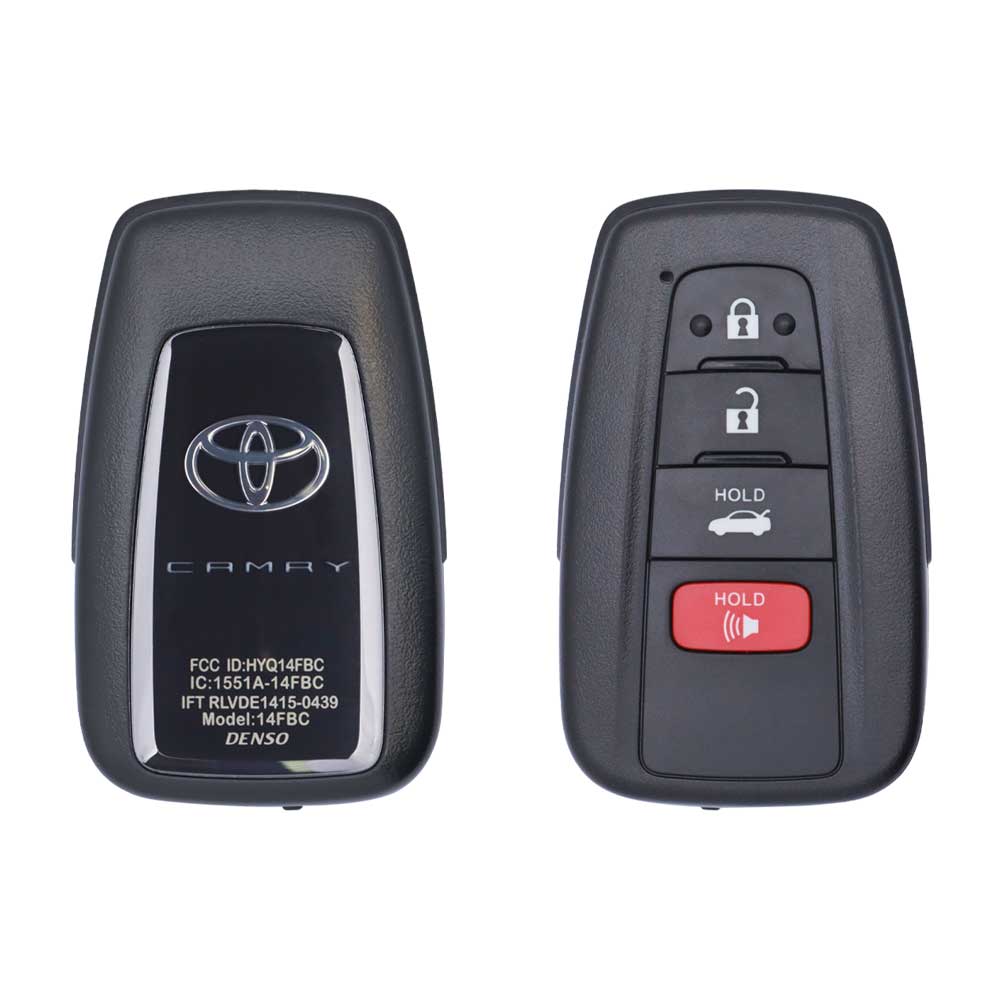
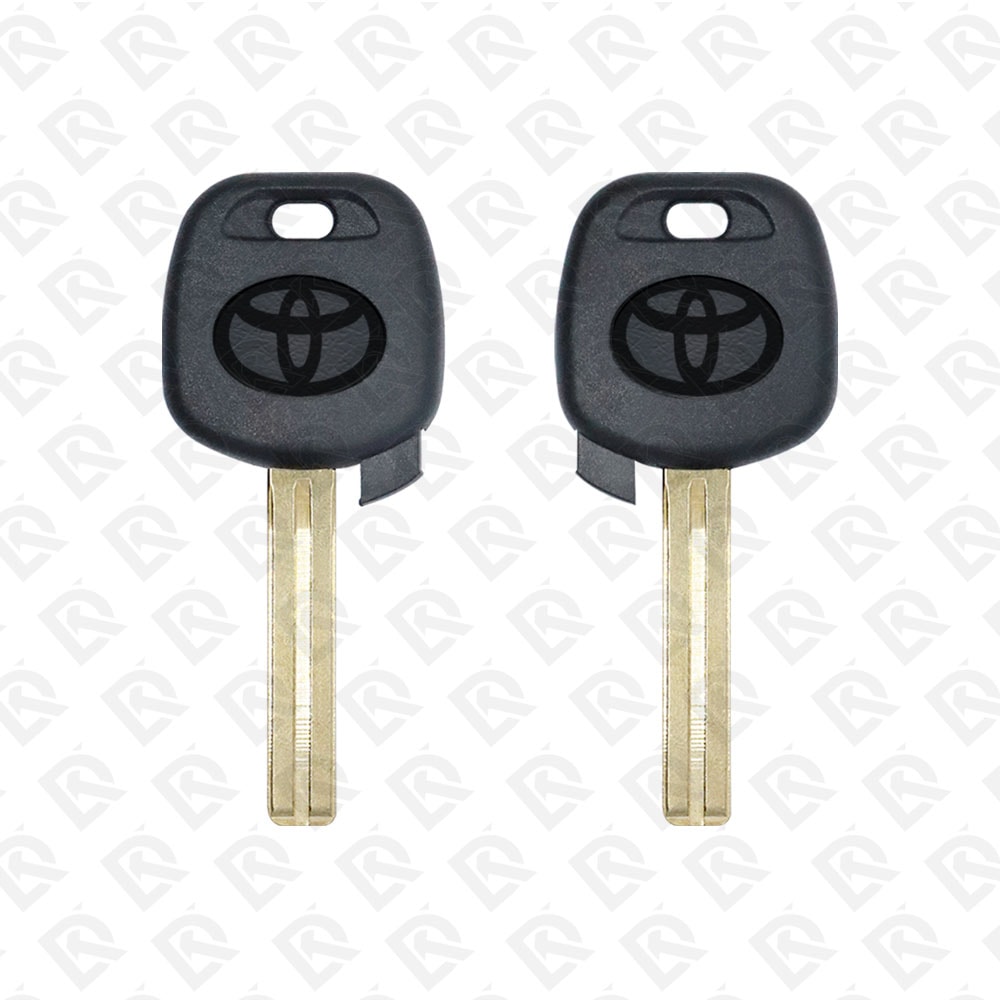
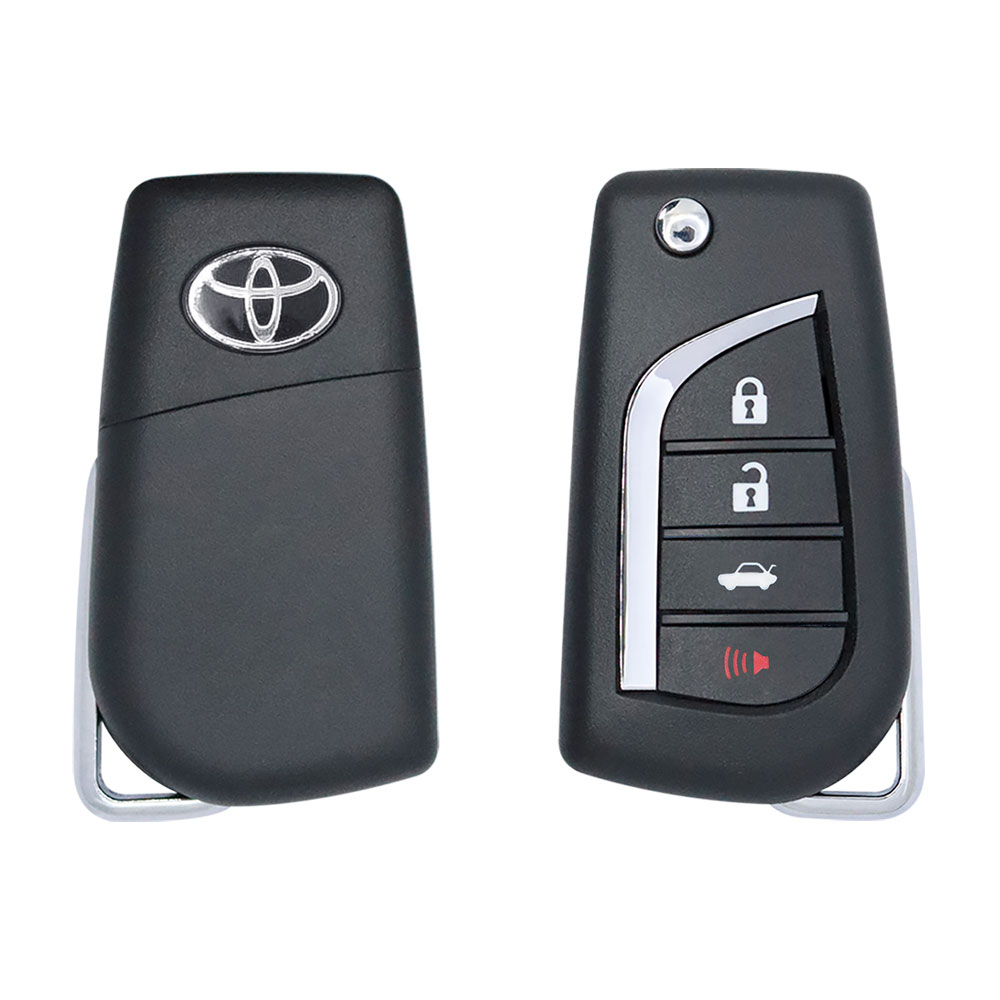
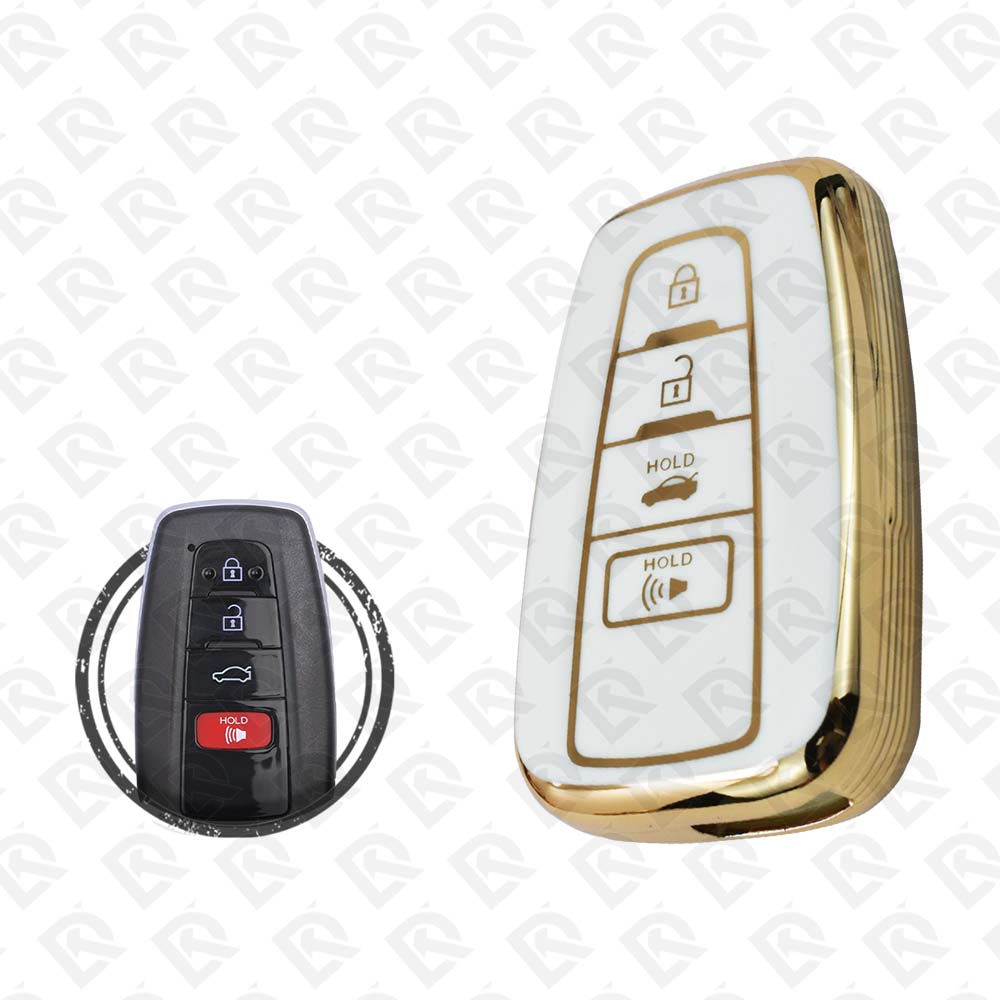
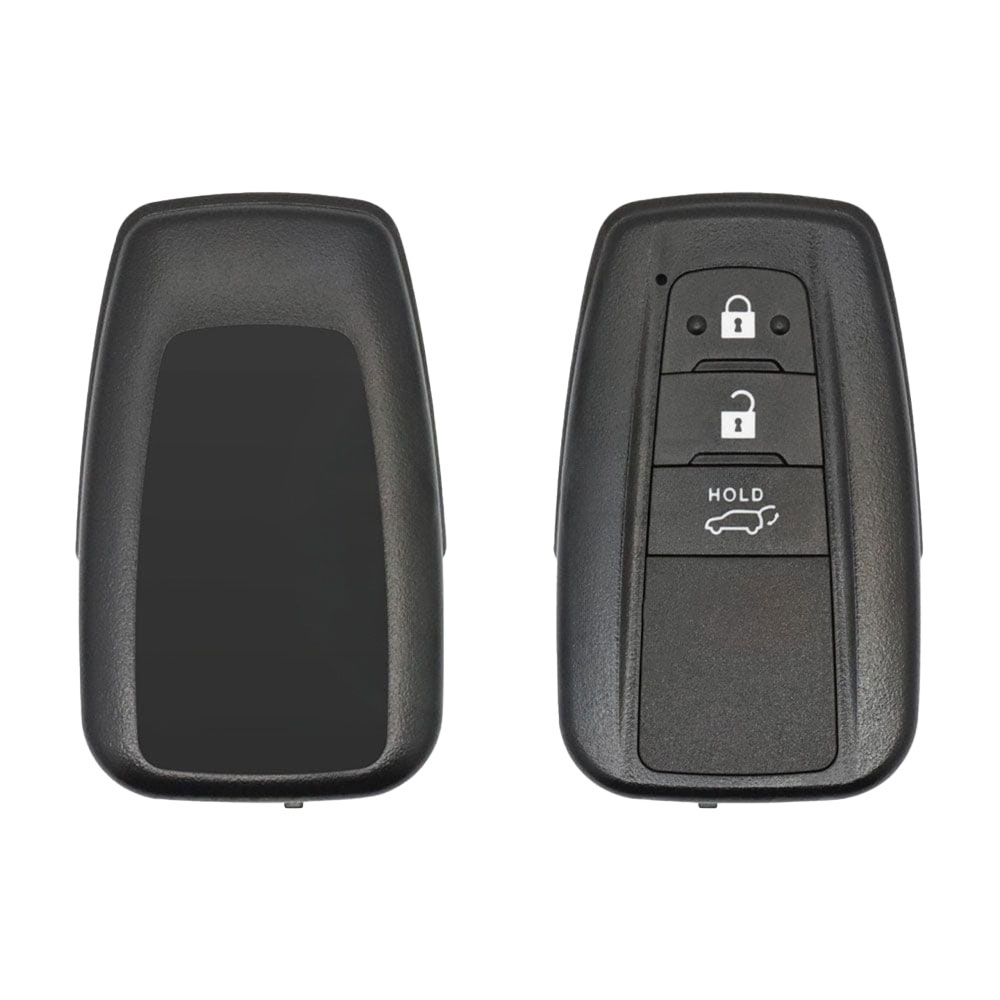
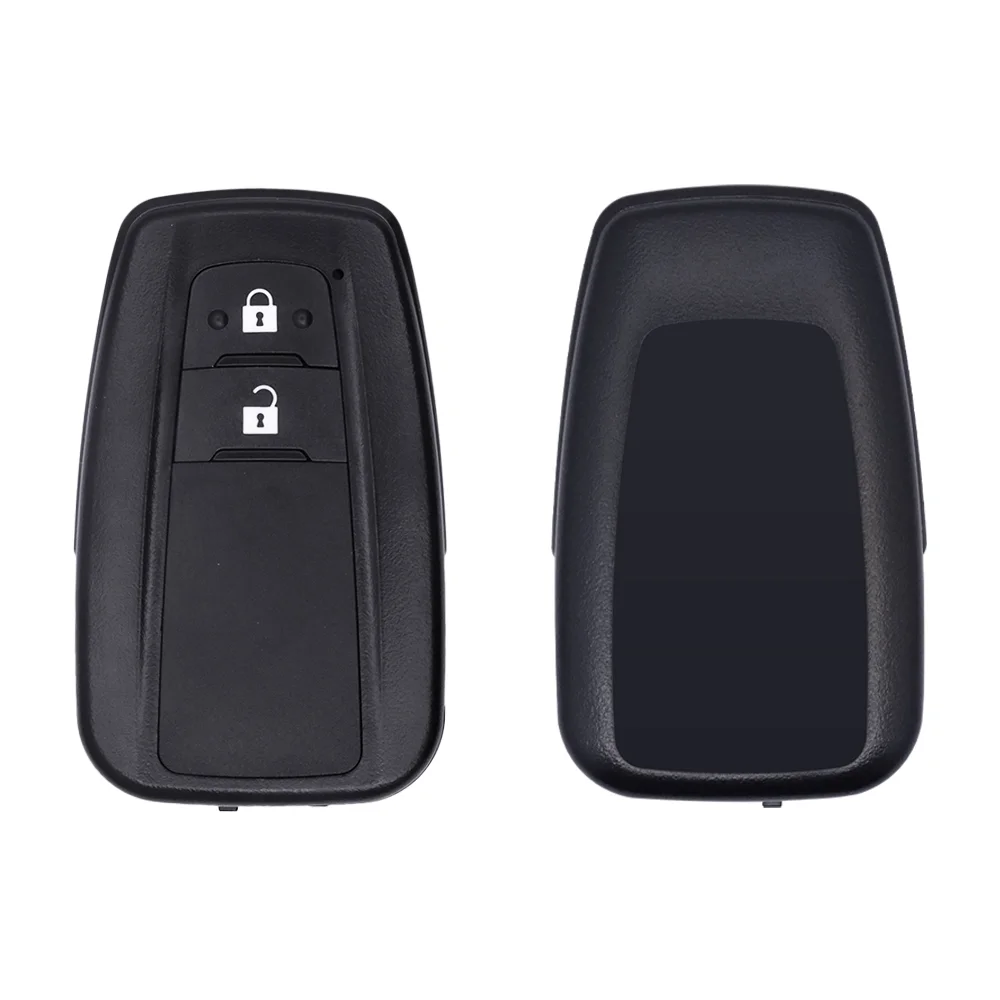
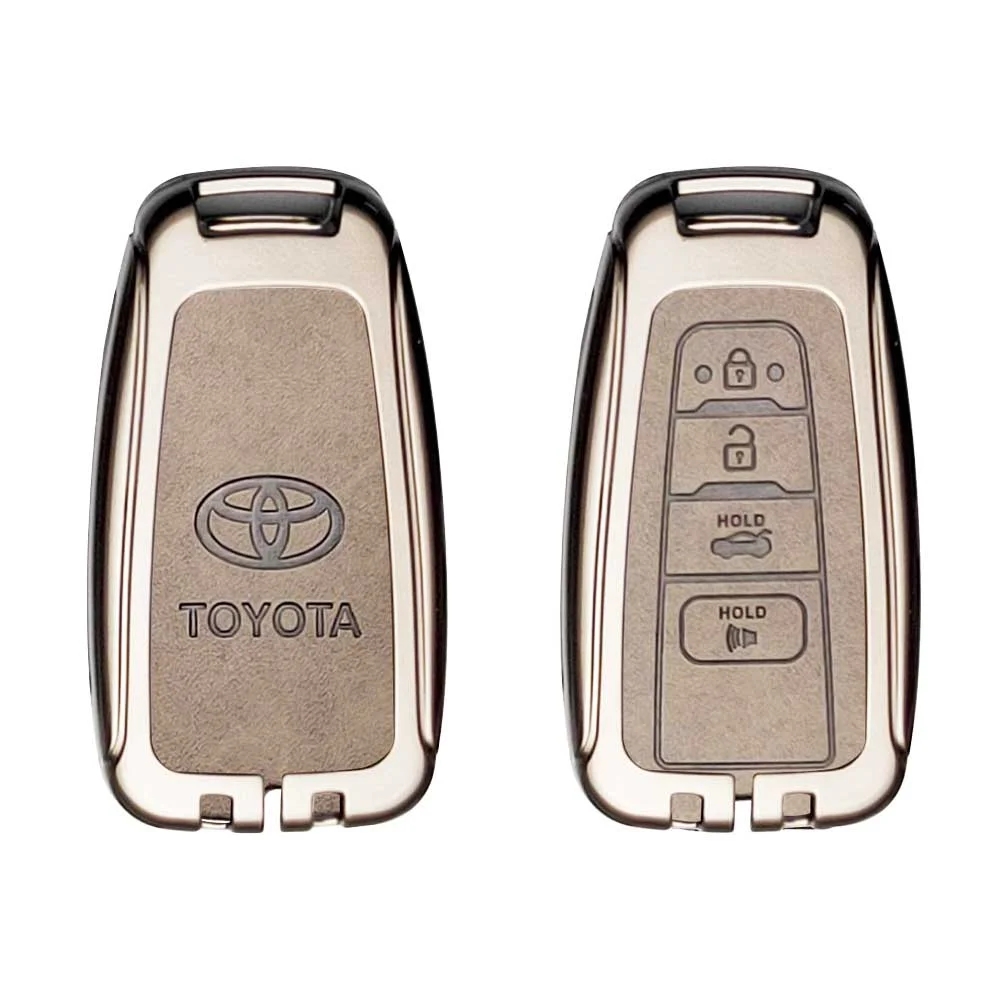
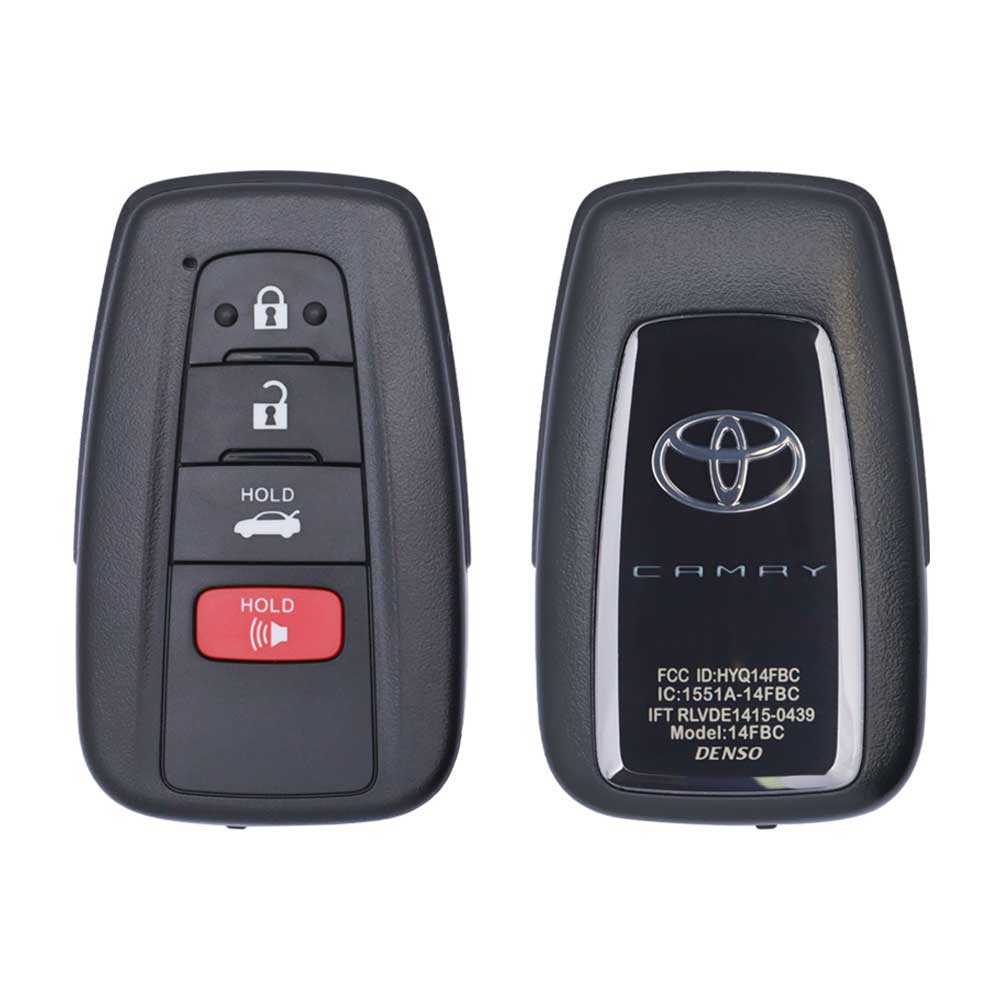
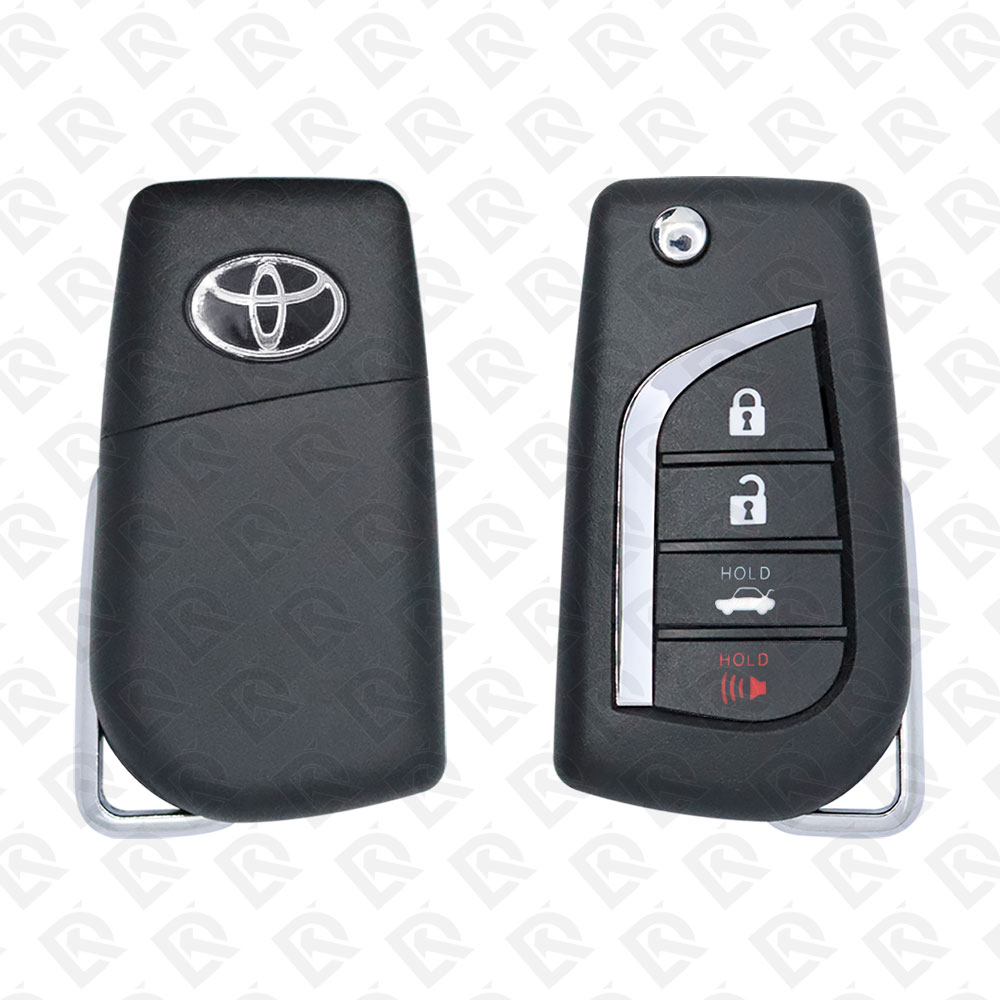
Keys that fit the 2020–2021 Toyota Camry: smart keys, flip keys and remote keys, 2, 3 or 4 buttons, FCC ID HYQ12BFB, HYQ14FBC or BR2EX, 8A+4D or 8A (H-chip) chip, 314 MHz, 315 MHz or 433 MHz. 24 compatible keys, remotes & shells (genuine and aftermarket) available for the 2020 Toyota Camry.

Last updated: 17 November 2026

Key specifications for the Toyota Camry 2020–2021

Key types
smart keys, flip keys, remote keys, transponder keys, key shells, emergency blades and key blanks
Frequency
314 MHz, 315 MHz and 433 MHz
Buttons
2-, 3- and 4-button
Transponder chip
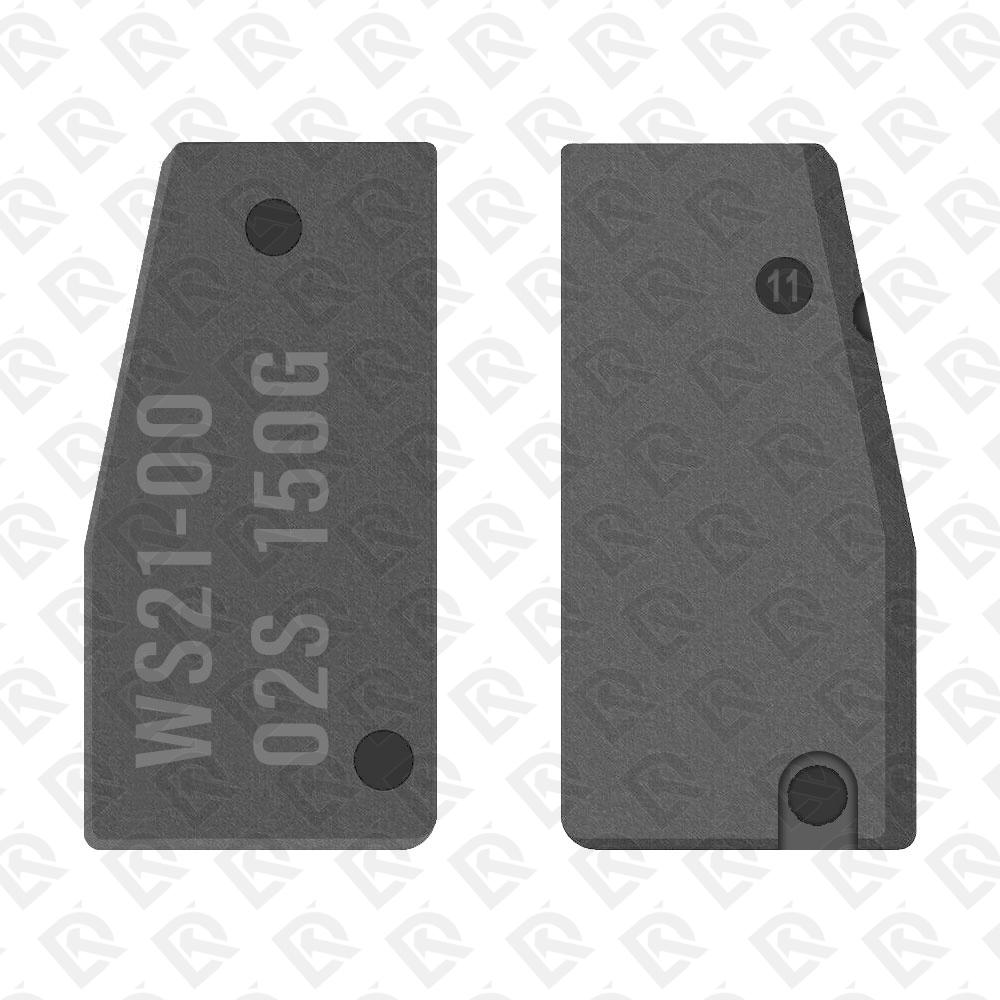
8A+4D · 8A (H-chip) · TRPWS21
Blade profile
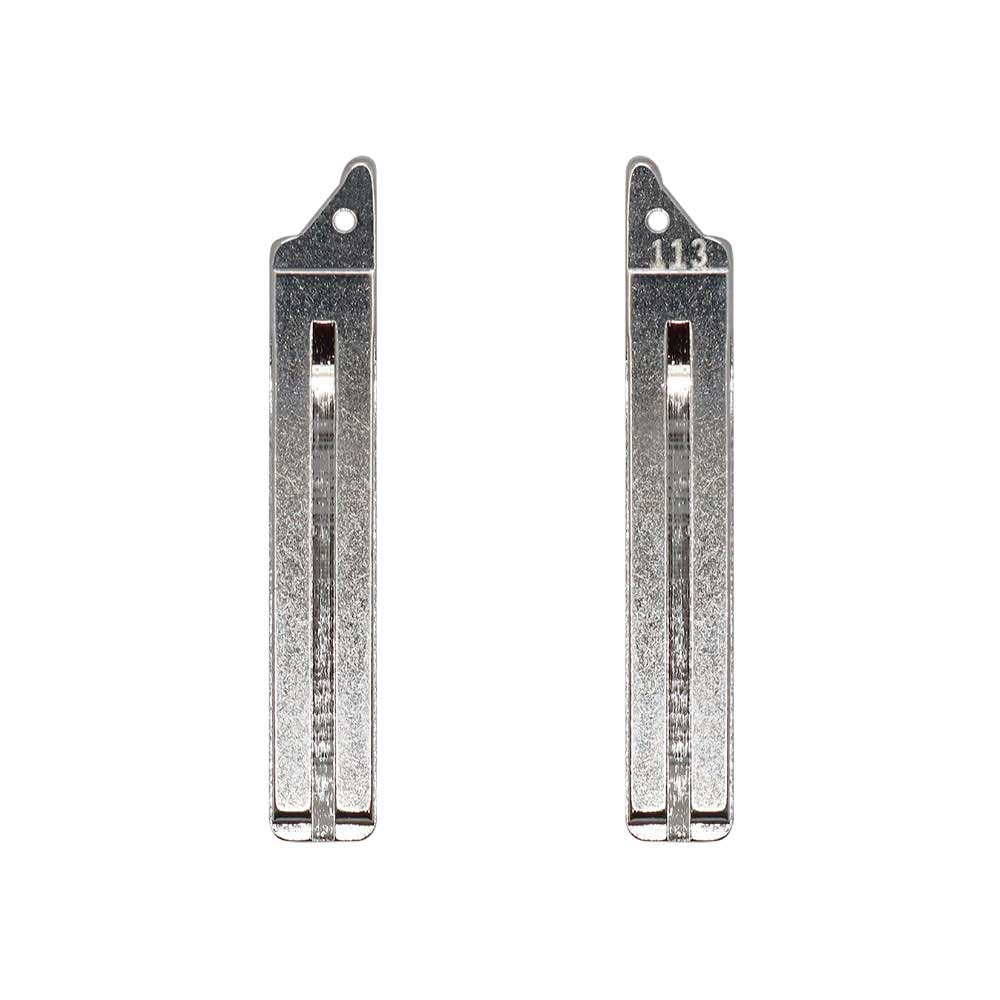
TOY48 · TOY51 · LXP90 · TOY43
Part numbers
89904-33770 · 89070-02B40 · 89904-33550 · 89070-06790 / 89070-06791
Battery
CR2032

To pick the right part, match the part number or FCC ID printed on your original remote, or listed in the Toyota parts catalogue, with the specifications on each listing. The frequency depends on the market the car was sold in, so check 314 MHz, 315 MHz and 433 MHz against your original before ordering.

A new smart key or remote has to be programmed to the car with a key programmer, and when every key is lost the programming is still done through the diagnostic port. We ship the key worldwide from the UAE by DHL and FedEx; any automotive locksmith or the dealer can cut and program it.
Programming the Toyota Camry 2020 key

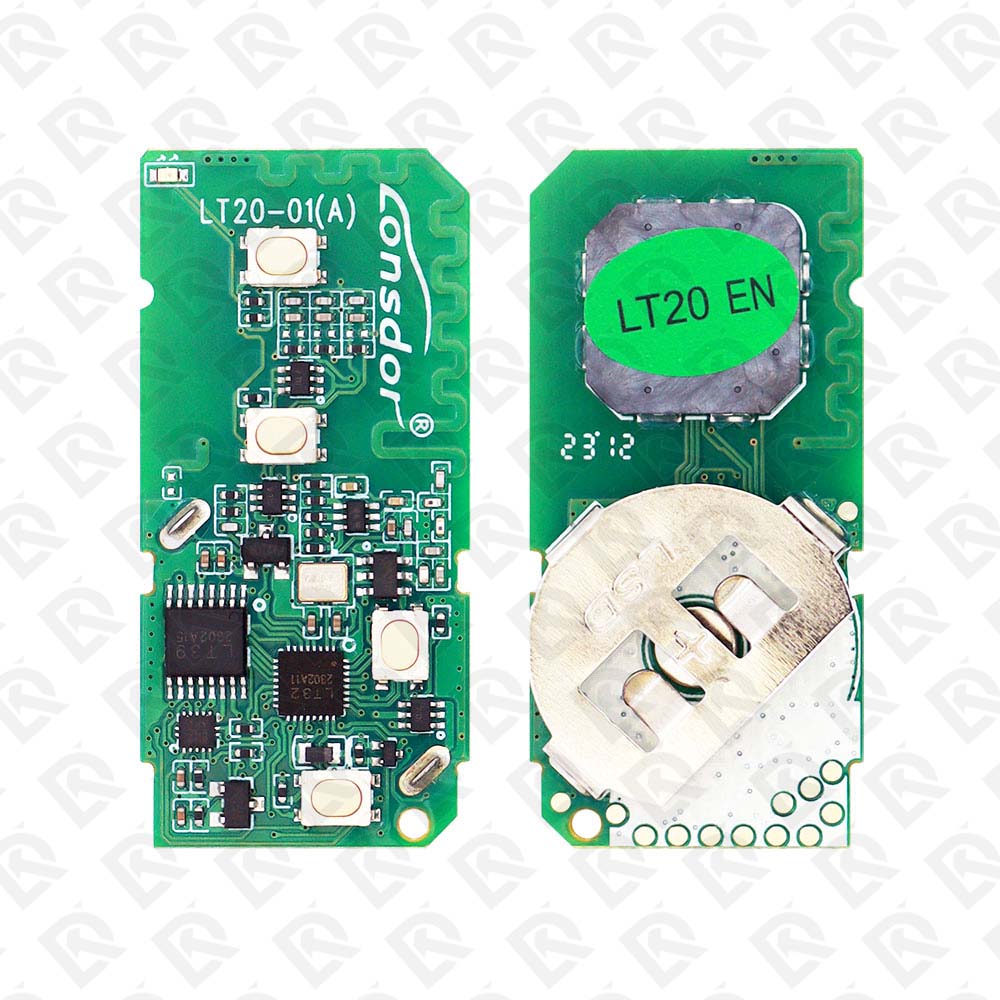
Smart key (push to start)

7 tools list this key. 7 of them list all keys lost.

Programming steps

Add key - Autel MaxiIM IM508 / IM608

Needs: working smart key, new smart key, internet connection

  1. IMMO > Toyota > select the model > Smart key > (8A) > Control unit > Keyless system (CAN) > Back up IMMO data, by OBD, and save the file.
  2. Add smart key: load the file, switch on, follow the prompts (ignition off, hazards on).
  3. Working key to the Start button until one beep, then the new key until two beeps.
  4. Switch on, touch a learned key to the Start button, then test start and remote.
Watch out: Bring every key the customer keeps; check the remote buttons on each after programming. The smart box has 5 key positions in the worked examples; erase unused keys if it is full.
Add key - Lonsdor K518ISE / K518S / K518 Pro

Needs: working smart key, Lonsdor Super ADP 8A/4A adapter when the OBD backup fails, new smart key, internet connection

  1. Immo & Remote > Toyota > Select from type > All smart key lost (2016-) > 8A or 4A > Backup immo data, by OBD or with the ADP adapter on the smart box; save the data.
  2. Add smart key: switch on with the working key, then ignition off and hazards on when asked; load the saved data.
  3. Working key to the Start button until one beep, then within 30 s the new key until two beeps.
  4. Switch on, touch a programmed key to the Start button, then test start and remote.
Watch out: Bring every key the customer keeps; check the remote buttons on each after programming. The smart box has 5 key positions in the worked examples; erase unused keys if it is full.
Add key - Xhorse VVDI Key Tool Plus

Needs: working smart key, Xhorse XD8ASKGL Toyota 8A smart key adapter (TOY-C1 / TOY-C2 cables), new smart key (OEM or Xhorse XM38), internet connection

  1. Identify the original key type (8A or 4A) with the Key Tool Plus.
  2. Connect OBD > Key Tool Plus OBD cable > XD8ASKGL adapter > tablet; connect the smart box to the adapter with the TOY-C1 or TOY-C2 cable that fits its plug.
  3. Toyota immo menu > Backup smart box EEPROM data (online); save the file, then refit the smart box plug.
  4. Add smart key: switch on, then off, hazards on; load the saved file. The tool shows registered and free positions.
  5. Working key to the Start button until it beeps, then each new key in turn until it beeps.
  6. Switch on and test start and remote of every key.
Watch out: Bring every key the customer keeps; check the remote buttons on each after programming. The smart box has 5 key positions in the worked examples; erase unused keys if it is full.
All keys lost - Autel MaxiIM IM508 / IM608

Needs: APB112 smart key simulator, XP400 (IM508), new smart key, internet connection, no PIN entry

  1. IMMO > Toyota > select the model > Smart key > (8A) > Control unit > Keyless system (CAN) > Back up IMMO data. Use the VCI on USB, not Bluetooth.
  2. With the ignition off, turn the hazard lights on and off once and press Start 5 times when asked; back up by OBD and save the EEPROM file.
  3. Generate analog key: load the file, connect the APB112, keep it powered and near the Start button, press Start and follow the prompts until it is generated.
  4. Add smart key: load the same file, switch on, enter the VIN, switch off and turn the hazards on.
  5. APB112 to the Start button until one beep, then the new key until two beeps.
  6. Switch on, touch a learned key to the Start button, then test start and remote.
Watch out: The car battery must be charged; the data backup needs an internet connection. The simulator / emulator is erased if you use the device for another key job before adding the key: add the new key straight after generating it. The smart box has 5 key positions in the worked examples; erase unused keys if it is full. Keep the APB112 powered the whole time: the analog key is lost if it loses power.
All keys lost - Lonsdor K518ISE / K518S / K518 Pro

Needs: LKE emulator (K518ISE / K518S), Lonsdor Super ADP 8A/4A adapter when the OBD backup fails, new smart key (OEM or Lonsdor FT key), internet connection, no PIN from the dealer (the 12-digit code is derived from the backup)

  1. Bind the LKE emulator to the K518ISE / K518S (the K518 Pro generates the emergency key without an LKE).
  2. Immo & Remote > Toyota > Select from type > All smart key lost (2016-) > 8A or 4A > Backup immo data. Try by OBD first; if it fails, connect the ADP adapter between the smart box and its harness.
  3. Turn the hazard lights on when asked, enter the VIN if asked, let the tool calculate online and save the data.
  4. Refit the smart box plug, connect by OBD, put the LKE in the card slot and generate the emergency key from the saved data.
  5. Add smart key: switch on with the LKE at the Start button, then ignition off and hazards on when asked; load the saved data.
  6. Registered key (LKE) to the Start button until one beep, then within 30 s the new key until two beeps.
  7. Switch on and touch a programmed key to the Start button (one beep), then test start and remote.
  8. Delete lost keys with Delete smart key if the customer wants them gone.
Watch out: The car battery must be charged; the data backup needs an internet connection. The simulator / emulator is erased if you use the device for another key job before adding the key: add the new key straight after generating it. The smart box has 5 key positions in the worked examples; erase unused keys if it is full. The ADP adapter is bound to one K518 for good.

Key with a blade (regular or flip)

7 tools list this key. 6 of them list all keys lost.

Key type not stated by the list

One tool lists this key.

Without a tool

The remote is not programmed on the car by hand: it needs a tool or a dealer.

When the key changed

Smart key (push to start)

  • 2007 - 2011Chip: 4D315 MHzFCC: HYQ14AAB(US / Canada cars)Push-to-start trims only
  • 2012 - 2024This yearChip: 8A315 MHzFCC: HYQ14FBA, HYQ14FBC, HYQ14FLA(US / Canada cars)FCC id changes in 2018 (FBA to FBC / FLA)
  • 2013 - 2020This yearChip: 8A433 MHz(GCC / Europe cars)
  • from 2025Chip: 4A315 MHzFCC: HYQ14FBW(US / Canada cars)

Key with a blade (regular or flip)

  • 1998 - 2002Chip: 4CBlade: TOY432003-2004 cars may still be 4C; read the chip
  • 2003 - 2010Chip: 4D-67Blade: TOY43(US / Canada cars)Overlap years may be 4D-67 or G; G is stamped on the blade
  • 2006 - 2010Chip: 4D-67Blade: TOY43(GCC / Europe cars)
  • 2011 - 2014Chip: GBlade: TOY43(US / Canada cars)Overlap years may be 4D-67 or G; G is stamped on the blade
  • 2012 - 2015Chip: G433 MHz(GCC / Europe cars)
  • 2015 - 2023This yearChip: H (8A)315 MHzFCC: HYQ12BDM, HYQ12BFB(US / Canada cars)Overlap years may be G or H; check the letter on the blade

Check coverage first: support depends on the tool's software version and the exact model. A tool that is not shown here may still cover this car.

Frequently asked questions

Which keys fit the Toyota Camry 2020–2021?

24 listings fit the Toyota Camry 2020–2021: smart keys, flip keys, remote keys, transponder keys, key shells, emergency blades and key blanks, in 2-, 3- and 4-button versions. Match the part number or FCC ID printed on your original key with the specifications on each listing.

What frequency does the Toyota Camry 2020–2021 remote use?

Listings for the Toyota Camry 2020–2021 come in 314 MHz, 315 MHz and 433 MHz: the frequency depends on the market the car was sold in, so check it against your original remote before ordering.

Which transponder chip does the Toyota Camry 2020–2021 key use?

The listings for this car carry: 8A+4D · 8A (H-chip) · TRPWS21. Check the chip in each listing's specifications.

Which FCC IDs do Toyota Camry 2020–2021 remotes carry?

The remotes listed for this car carry FCC ID B2U2K2R, B74TA, BR2EX, HYQ12BFB, HYQ14FBC and HYQ14FBN. Match it with the FCC ID printed on your original remote.

Which blade profile does the Toyota Camry 2020–2021 key use?

The blades listed for this car: TOY48 · TOY51 · LXP90 · TOY43.

Which tools program a Toyota Camry 2020–2021 key?

The tool makers' coverage lists name Advanced Diagnostics Smart Pro, OBDSTAR Key Master G3, Autel IM608 II / IM608 Pro II, Lonsdor K518, Xhorse VVDI Key Tool Max and Xhorse VVDI Key Tool Plus for this car; 6 of them list all keys lost. Check your tool's latest coverage list before the job.

Can the Toyota Camry 2020–2021 remote be programmed without a tool?

The remote is not programmed on the car by hand: it needs a tool or a dealer.